Dev Container CLI
本主题涵盖开发容器命令行界面(dev container CLI),允许您构建和管理开发容器,并且是开发容器规范的配套内容。
开发容器
一个一致且可预测的环境是高效且愉快的软件开发体验的关键。
容器(例如Docker容器)历来用于标准化应用的部署,但现在支持更多场景也是一个很好的机会,包括持续集成(CI)、测试自动化和功能齐全的编码环境。开发容器提供这样的工作环境,确保你的项目拥有所需的工具和软件,无论是复杂且分布式的,还是只有少量需求。
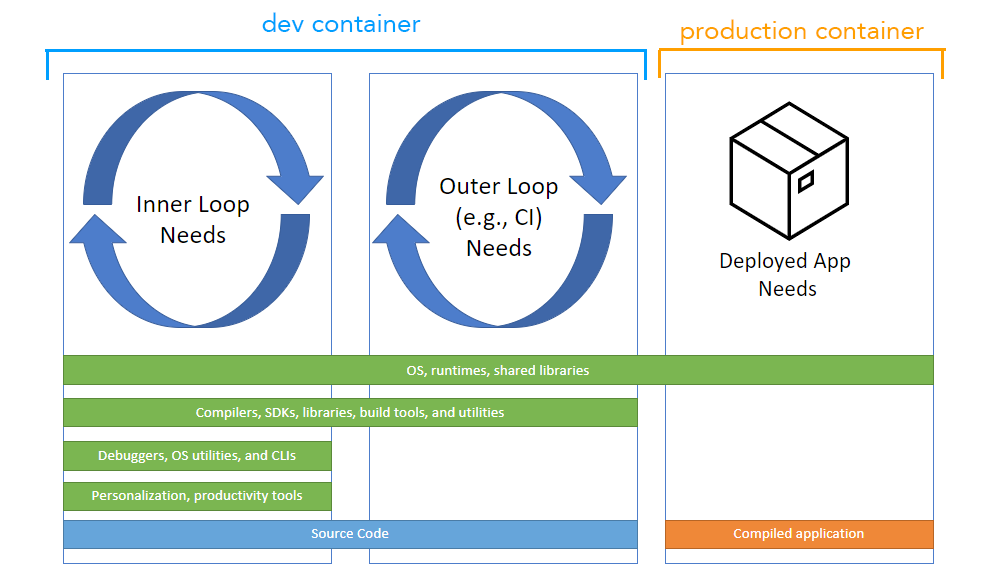
开发容器通过 Visual Studio Code 的 Dev Containers 扩展和 GitHub Codespaces 支持。这种支持由 devcontainer.json 支持,这是一种结构化的 JSON 带注释(jsonc)元数据格式,用于配置容器化环境。
随着容器化生产工作负载的普及,开发容器在 VS Code 以外的场景中变得广泛有用。为了在任何环境中推广开发容器,开发容器规范的工作已启动,该规范使任何人在任何工具中都能配置一致的开发环境。开源开发容器CLI作为规范的参考实现。
开发容器CLI是
当像VS Code和Codespaces这样的工具检测到一个devcontainer.json在用户项目中,他们使用CLI来配置开发容器。开发容器CLI是一个参考实现,方便个别用户和其他工具读取devcontainer.json元数据并由此创建开发容器。
这个CLI可以直接使用,也可以集成到产品体验中,就像它今天与开发容器和代码空间集成一样。目前它支持简单的单一容器选项,并与 Docker Compose 集成以支持多容器场景。
CLI可以在devcontainers/cli仓库中找到。
安装
你可以通过开发容器扩展快速试用CLI。选择开发容器:从命令面板(F1)安装开发容器CLI命令。
替代安装
还有其他选项可以在其他地方使用CLI:
- 安装它的npm包
- 使用 GitHub Action 或 Azure DevOps 任务
- 你可以在开发容器/CI中找到这些
- 从源代码构建CLI仓库
- 你可以在CLI仓库的README中了解更多关于从源代码构建的内容
在本页中,我们将重点介绍如何使用 npm 包。
NPM 安装
要安装npm包,你需要安装Python、Node.js(版本14或更高)和C/C++来构建其中一个依赖。VS Code 如何贡献维基有推荐工具集的详细信息。
npm install -g @devcontainers/cli
确认你能运行CLI并查看其帮助文本:
devcontainer <command>

Commands:
  devcontainer up                   Create and run dev container
  devcontainer build [path]         Build a dev container image
  devcontainer run-user-commands    Run user commands
  devcontainer read-configuration   Read configuration
  devcontainer features             Features commands
  devcontainer templates            Templates commands
  devcontainer exec <cmd> [args..]  Execute a command on a running dev container

Options:
  --help     Show help                                                 [boolean]
  --version  Show version number                                       [boolean]
注:该
开门如果你通过VS Code安装了CLI,打开开发容器的命令会显示出来。
运行CLI
有了CLI后,你可以用示例项目来尝试,比如这个Rust示例。
把 Rust 样本克隆到你的机器上,然后用 CLI 启动一个开发容器上指挥:
git clone https://github.com/microsoft/vscode-remote-try-rust
devcontainer up --workspace-folder <path-to-vscode-remote-try-rust>
这样可以从容器注册表下载容器镜像并启动容器。你的Rust容器现在应该已经运行起来了:
[88 ms] dev-containers-cli 0.1.0.
[165 ms] Start: Run: docker build -f /home/node/vscode-remote-try-rust/.devcontainer/Dockerfile -t vsc-vscode-remote-try-rust-89420ad7399ba74f55921e49cc3ecfd2 --build-arg VARIANT=bullseye /home/node/vscode-remote-try-rust/.devcontainer
[+] Building 0.5s (5/5) FINISHED
 => [internal] load build definition from Dockerfile                       0.0s
 => => transferring dockerfile: 38B                                        0.0s
 => [internal] load .dockerignore                                          0.0s
 => => transferring context: 2B                                            0.0s
 => [internal] load metadata for mcr.microsoft.com/vscode/devcontainers/r  0.4s
 => CACHED [1/1] FROM mcr.microsoft.com/vscode/devcontainers/rust:1-bulls  0.0s
 => exporting to image                                                     0.0s
 => => exporting layers                                                    0.0s
 => => writing image sha256:39873ccb81e6fb613975e11e37438eee1d49c963a436d  0.0s
 => => naming to docker.io/library/vsc-vscode-remote-try-rust-89420ad7399  0.0s
[1640 ms] Start: Run: docker run --sig-proxy=false -a STDOUT -a STDERR --mount type=bind,source=/home/node/vscode-remote-try-rust,target=/workspaces/vscode-remote-try-rust -l devcontainer.local_folder=/home/node/vscode-remote-try-rust --cap-add=SYS_PTRACE --security-opt seccomp=unconfined --entrypoint /bin/sh vsc-vscode-remote-try-rust-89420ad7399ba74f55921e49cc3ecfd2-uid -c echo Container started
Container started
{"outcome":"success","containerId":"f0a055ff056c1c1bb99cc09930efbf3a0437c54d9b4644695aa23c1d57b4bd11","remoteUser":"vscode","remoteWorkspaceFolder":"/workspaces/vscode-remote-try-rust"}
然后你可以在这个开发容器中运行命令:
devcontainer exec --workspace-folder <path-to-vscode-remote-try-rust> cargo run
这会编译并运行Rust样本,输出:
[33 ms] dev-containers-cli 0.1.0.
   Compiling hello_remote_world v0.1.0 (/workspaces/vscode-remote-try-rust)
    Finished dev [unoptimized + debuginfo] target(s) in 1.06s
     Running `target/debug/hello_remote_world`
Hello, VS Code Dev Containers!
{"outcome":"success"}
上述步骤也包含在CLI仓库的README中。
自动化
如果你想在 CI/CD 构建或测试自动化中使用开发容器 CLI,可以在 devcontainers/ci 仓库中找到 GitHub Actions 和 Azure DevOps 任务的示例。
建设前
该devcontainer 构建command允许你快速构建开发容器镜像,步骤与Dev Containers扩展或GitHub Codespaces相同。当你想用像 GitHub Actions 这样的 CI 或 DevOps 产品预构建开发容器镜像时,这尤其有用。
建造接受包含.devcontainer文件夹或.devcontainer.json档案。例如,devcontainer build --workspace-folder <my_repo>将构建 的容器镜像my_repo.
构建和发布图片的示例
例如,你可能想预先构建若干图片,然后在多个项目或仓库中重复使用。为此,请遵循以下步骤:
-
创建一个源代码仓库。
-
为你想预构建的每个镜像创建开发容器配置,并根据需要自定义(包括开发容器功能)。例如,考虑以下情况
devcontainer.json文件:{ "build": { "dockerfile": "Dockerfile" }, "features": { "ghcr.io/devcontainers/features/docker-in-docker:1": { "version": "latest" } } } -
使用该
devcontainer 构建命令来构建镜像并将其推送到你的镜像注册表。请参阅你的镜像注册表文档(如 Azure Container Registry、GitHub Container Registry 或 Docker Hub)关于镜像命名及认证等额外步骤的信息。devcontainer build --workspace-folder <my_repo> --push true --image-name <my_image_name>:<optional_image_version>
避免使用Docker构建的镜像问题
给定Docker文件和Docker Compose文件可以在不使用VS代码或开发容器CLI,你可能想告诉用户不要直接构建镜像。你可以在高级开发容器文档中了解更多。
模板与功能
你可以使用开发容器的 CLI 来处理开发容器模板和功能。在创建和使用模板时,你可能想发布给其他人,这方面你可以在开发容器规范中学到更多。
反馈
开发容器的CLI和规范正在积极开发中,我们欢迎你的反馈,你可以在本期中提供,或通过devcontainers/cli仓库中的新issue和pull request来提供。
下一步
- 开发容器规范仓库——阅读并贡献开放规范。
- devcontainer.json参考文献 - 回顾
devcontainer.jsonSchema。 - 创建开发容器——为你的工作环境创建一个自定义容器。
- 高级容器——寻找针对高级容器场景的解决方案。