语言服务器扩展指南
正如你在 编程语言特性 主题中所看到的,可以通过直接使用 语言.*API。然而,语言服务器扩展提供了一种实现这种语言支持的替代方法。
这个话题:
- 解释了语言服务器扩展的好处。
- 指导您使用该方法构建一个语言服务器
微软/vscode-languageserver-node库。你也可以直接跳转到 lsp-sample 中的代码。
为什么选择语言服务器?
语言服务器是一种特殊的Visual Studio Code扩展,为许多编程语言提供编辑体验。有了语言服务器,您可以实现自动完成、错误检查(诊断)、跳转到定义以及VS Code中支持的许多其他语言特性。
然而,在为 VS Code 实施语言特性支持时,我们发现了三个常见问题:
首先,语言服务器通常使用其原生编程语言实现,这给与使用Node.js运行时的VS Code集成带来了挑战。
此外,语言功能可能会消耗大量资源。例如,为了正确验证一个文件,语言服务器需要解析大量文件,为它们建立抽象语法树并进行静态程序分析。这些操作可能会显著增加CPU和内存的使用,我们需要确保VS Code的性能不受影响。
最后,将多种语言工具与多种代码编辑器集成可能会涉及大量的工作。从语言工具的角度来看,它们需要适应具有不同API的代码编辑器。从代码编辑器的角度来看,它们不能期望语言工具提供任何统一的API。这使得为代码编辑器实现语言支持变得困难。输入:M语言在输入: N代码编辑器的工作M * N输入:.
为了解决这些问题,微软规定了语言服务器协议,该协议规范了语言工具和代码编辑器之间的通信。这样,语言服务器可以用任何语言实现,并且可以在其自己的进程运行,以避免性能成本,因为它们通过语言服务器协议与代码编辑器通信。此外,任何符合LSP的语言工具可以与多个符合LSP的代码编辑器集成,任何符合LSP的代码编辑器可以轻松地支持多个符合LSP的语言工具。LSP对语言工具提供商和代码编辑器供应商来说都是一个双赢的选择!

在这份指南中,我们将:
- 解释如何使用提供的 Node SDK在 VS Code 中构建 Language Server 扩展。
- 解释如何运行、调试、记录和测试语言服务器扩展。
- 指向你一些关于语言服务器的高级主题。
实现一个语言服务器
概述
在 VS Code 中,语言服务器有两部分:
- 语言客户端:一个用JavaScript / TypeScript编写的普通VS Code扩展。此扩展具有访问所有VS Code命名空间API的权限。
- 语言服务器:一个在单独进程运行的语言分析工具。
如上面简要所述,运行语言服务器有两个好处:
- 分析工具可以使用任何语言实现,只要它能够按照 Language Server 协议与 Language Client 进行通信即可。
- 由于语言分析工具通常对CPU和内存的使用量较大,因此在单独的进程中运行它们可以避免性能成本。
这里有一个VS Code运行两个语言服务器扩展的示例。HTML语言客户端和PHP语言客户端是用TypeScript编写的普通VS Code扩展。它们各自实例化一个相应的语言服务器,并通过LSP与之通信。尽管PHP语言服务器是用PHP编写的,但它仍然可以通过LSP与PHP语言客户端进行通信。

本指南将教您如何使用我们的Node SDK来构建一个语言客户端/服务器。剩余的文档假定您熟悉VS Code扩展API。
LSP 样例 - 一个简单的纯文本文件语言服务器
让我们构建一个简单的语言服务器扩展,该扩展为纯文本文件实现自动完成和诊断功能。我们还将涵盖客户端/服务器之间的配置同步。
如果你更喜欢直接跳入代码:
- lsp-sample:本指南的详细文档源代码。
- lsp-multi-server-sample:一个文档丰富的高级版本 lsp-sample,它为每个工作区文件夹启动一个不同的服务器实例,以支持 VS Code 的多根工作区 功能。
克隆仓库 Microsoft/vscode-extension-samples 并打开示例:
> git clone https://github.com/microsoft/vscode-extension-samples.git
> cd vscode-extension-samples/lsp-sample
> npm install
> npm run compile
> code .
以上安装所有依赖项并打开lsp-sample工作区,其中包含客户端和服务器代码。以下是lsp-sample的结构概述:
.
├── client // 语言客户端
│   ├── src
│   │   ├── test // 语言客户端/服务器端到端测试
│   │   └── extension.ts // 语言客户端入口点
├── package.json // 扩展清单
└── server // 语言服务器
    └── src
        └── server.ts // 语言服务器入口点
解释“语言客户端”
让我们首先看看/package.json,描述了语言客户端的功能。有两个有趣的部分:
首先,看看配置部分:
"configuration": {
    "type": "object",
    "title": "Example configuration",
    "properties": {
        "languageServerExample.maxNumberOfProblems": {
            "scope": "resource",
            "type": "number",
            "default": 100,
            "description": "Controls the maximum number of problems produced by the server."
        }
    }
}
本节贡献配置将设置发送到 VS Code。示例将解释这些设置如何在启动时和每次设置更改时发送到语言服务器。
注意:如果您的扩展与 VS Code 1.74.0 之前的版本兼容,您必须声明
关于语言:纯文本在激活事件领域/package.json告诉 VS Code 在打开纯文本文件时(例如扩展名为 的文件)激活该扩展输入:.txt):"激活事件": []
实际的 Language Client 源代码和相应的package.json在/客户端文件夹。有趣的部分在/客户端/package.json文件是指它引用了Visual Studio Code扩展主机 API 通过发动机字段并添加对vscode-languageclient图书馆:
"engines": {
    "vscode": "^1.52.0"
},
"dependencies": {
    "vscode-languageclient": "^7.0.0"
}
如上所述,客户端作为一个普通的 VS Code 扩展实现,并且可以访问所有 VS Code 命名空间 API。
以下是对应的 extension.ts 文件内容,它是 lsp-sample 扩展的入口:
导入 * 为 路径 从 '路径';
导入 { 工作区, 扩展上下文 } 从 'vscode';

import {
  LanguageClient,
  LanguageClientOptions,
  ServerOptions,
  TransportKind
} from 'vscode-languageclient/node';

let client: LanguageClient | undefined;

export async function activate(context: ExtensionContext) {
  // The server is implemented in node
  let serverModule = context.asAbsolutePath(path.join('server', 'out', 'server.js'));
  // The debug options for the server
  // --inspect=6009: runs the server in Node's Inspector mode so VS Code can attach to the server for debugging
  let debugOptions = { execArgv: ['--nolazy', '--inspect=6009'] };

  // If the extension is launched in debug mode then the debug server options are used
  // Otherwise the run options are used
  let serverOptions: ServerOptions = {
    run: { module: serverModule, transport: TransportKind.ipc },
    debug: {
      module: serverModule,
      transport: TransportKind.ipc,
      options: debugOptions
    }
  };

  // Options to control the language client
  let clientOptions: LanguageClientOptions = {
    // Register the server for plain text documents
    documentSelector: [{ scheme: 'file', language: 'plaintext' }],
    synchronize: {
      // Notify the server about file changes to '.clientrc files contained in the workspace
      fileEvents: workspace.createFileSystemWatcher('**/.clientrc')
    }
  };

  // 创建语言客户端并启动客户端。
  client = new LanguageClient(
    'languageServerExample',
    '语言服务器示例',
    serverOptions,
    clientOptions
  );

  // 启动客户端。这也将启动服务器
  await client.start();
}

导出 异步 函数 禁用() {
  等待 客户端?.释放;
  客户端 = 未定义;
}
解释“语言服务器”
注意: 从 GitHub 仓库克隆的 'Server' 实现包含最终的 walkthrough 实现。要跟随 walkthrough,您可以创建一个新的
server.ts克隆版本的内容进行修改。
在示例中,服务器也是用 TypeScript 实现并使用 Node.js 运行的。由于 VS Code 已经配备了 Node.js 运行时,除非你有特定的运行时要求,否则不需要提供自己的。
语言服务器的源代码位于/服务器服务器的有趣部分package.json文件是:
"依赖项": {
    "vscode-languageserver": "^7.0.0",
    "vscode-languageserver-textdocument": "^1.0.1"
}
这吸引了vscode语言服务器图书馆。
以下是使用提供的文本文档管理器的服务器实现,该管理器通过始终从 VS Code 发送增量增量来同步文本文档。
import {
  createConnection,
  TextDocuments,
  Diagnostic,
  DiagnosticSeverity,
  ProposedFeatures,
  InitializeParams,
  DidChangeConfigurationNotification,
  CompletionItem,
  CompletionItemKind,
  TextDocumentPositionParams,
  TextDocumentSyncKind,
  InitializeResult
} from 'vscode-languageserver/node';

import { TextDocument } from 'vscode-languageserver-textdocument';

// Create a connection for the server, using Node's IPC as a transport.
// Also include all preview / proposed LSP features.
let connection = createConnection(ProposedFeatures.all);

// Create a simple text document manager.
let documents: TextDocuments<TextDocument> = new TextDocuments(TextDocument);

let hasConfigurationCapability: boolean = false;
let hasWorkspaceFolderCapability: boolean = false;
let hasDiagnosticRelatedInformationCapability: boolean = false;

connection.onInitialize((params: InitializeParams) => {
  let capabilities = params.capabilities;

  // Does the client support the `workspace/configuration` request?
  // If not, we fall back using global settings.
  hasConfigurationCapability = !!(
    capabilities.workspace && !!capabilities.workspace.configuration
  );
  hasWorkspaceFolderCapability = !!(
    capabilities.workspace && !!capabilities.workspace.workspaceFolders
  );
  hasDiagnosticRelatedInformationCapability = !!(
    capabilities.textDocument &&
    capabilities.textDocument.publishDiagnostics &&
    capabilities.textDocument.publishDiagnostics.relatedInformation
  );

  const result: InitializeResult = {
    capabilities: {
      textDocumentSync: TextDocumentSyncKind.Incremental,
      // Tell the client that this server supports code completion.
      completionProvider: {
        resolveProvider: true
      }
    }
  };
  if (hasWorkspaceFolderCapability) {
    result.capabilities.workspace = {
      workspaceFolders: {
        supported: true
      }
    };
  }
  return result;
});

connection.onInitialized(() => {
  if (hasConfigurationCapability) {
    // Register for all configuration changes.
    connection.client.register(DidChangeConfigurationNotification.type, undefined);
  }
  if (hasWorkspaceFolderCapability) {
    connection.workspace.onDidChangeWorkspaceFolders(_event => {
      connection.console.log('Workspace folder change event received.');
    });
  }
});

// The example settings
interface ExampleSettings {
  maxNumberOfProblems: number;
}

// The global settings, used when the `workspace/configuration` request is not supported by the client.
// Please note that this is not the case when using this server with the client provided in this example
// but could happen with other clients.
const defaultSettings: ExampleSettings = { maxNumberOfProblems: 1000 };
let globalSettings: ExampleSettings = defaultSettings;

// Cache the settings of all open documents
let documentSettings: Map<string, Thenable<ExampleSettings>> = new Map();

connection.onDidChangeConfiguration(change => {
  if (hasConfigurationCapability) {
    // Reset all cached document settings
    documentSettings.clear();
  } else {
    globalSettings = <ExampleSettings>(
      (change.settings.languageServerExample || defaultSettings)
    );
  }

  // Revalidate all open text documents
  documents.all().forEach(validateTextDocument);
});

function getDocumentSettings(resource: string): Thenable<ExampleSettings> {
  if (!hasConfigurationCapability) {
    return Promise.resolve(globalSettings);
  }
  let result = documentSettings.get(resource);
  if (!result) {
    result = connection.workspace.getConfiguration({
      scopeUri: resource,
      section: 'languageServerExample'
    });
    documentSettings.set(resource, result);
  }
  return result;
}

// Only keep settings for open documents
documents.onDidClose(e => {
  documentSettings.delete(e.document.uri);
});

// The content of a text document has changed. This event is emitted
// when the text document first opened or when its content has changed.
documents.onDidChangeContent(change => {
  validateTextDocument(change.document);
});

async function validateTextDocument(textDocument: TextDocument): Promise<void> {
  // In this simple example we get the settings for every validate run.
  let settings = await getDocumentSettings(textDocument.uri);

  // The validator creates diagnostics for all uppercase words length 2 and more
  let text = textDocument.getText();
  let pattern = /\b[A-Z]{2,}\b/g;
  let m: RegExpExecArray | null;

  let problems = 0;
  let diagnostics: Diagnostic[] = [];
  while ((m = pattern.exec(text)) && problems < settings.maxNumberOfProblems) {
    problems++;
    let diagnostic: Diagnostic = {
      severity: DiagnosticSeverity.Warning,
      range: {
        start: textDocument.positionAt(m.index),
        end: textDocument.positionAt(m.index + m[0].length)
      },
      message: `${m[0]} is all uppercase.`,
      source: 'ex'
    };
    if (hasDiagnosticRelatedInformationCapability) {
      diagnostic.relatedInformation = [
        {
          location: {
            uri: textDocument.uri,
            range: Object.assign({}, diagnostic.range)
          },
          message: 'Spelling matters'
        },
        {
          location: {
            uri: textDocument.uri,
            range: Object.assign({}, diagnostic.range)
          },
          message: 'Particularly for names'
        }
      ];
    }
    diagnostics.push(diagnostic);
  }

  // Send the computed diagnostics to VS Code.
  connection.sendDiagnostics({ uri: textDocument.uri, diagnostics });
}

connection.onDidChangeWatchedFiles(_change => {
  // Monitored files have change in VS Code
  connection.console.log('We received a file change event');
});

// This handler provides the initial list of the completion items.
connection.onCompletion(
  (_textDocumentPosition: TextDocumentPositionParams): CompletionItem[] => {
    // The pass parameter contains the position of the text document in
    // which code complete got requested. For the example we ignore this
    // info and always provide the same completion items.
    return [
      {
        label: 'TypeScript',
        kind: CompletionItemKind.Text,
        data: 1
      },
      {
        label: 'JavaScript',
        kind: CompletionItemKind.Text,
        data: 2
      }
    ];
  }
);

// This handler resolves additional information for the item selected in
// the completion list.
connection.onCompletionResolve(
  (item: CompletionItem): CompletionItem => {
    if (item.data === 1) {
      item.detail = 'TypeScript details';
      item.documentation = 'TypeScript documentation';
    } else if (item.data === 2) {
      item.detail = 'JavaScript details';
      item.documentation = 'JavaScript documentation';
    }
    return item;
  }
);

// 使文本文档管理器监听连接
文档.监听(连接);


// 在连接上监听
连接.监听();
添加简单的验证
为了在服务器上添加文档验证,我们为文本文档管理器添加了一个监听器,每当文本文档的内容发生变化时,该监听器就会被调用。然后由服务器决定何时是验证文档的最佳时机。在示例实现中,服务器验证纯文本文档,并标记所有使用全大写字母的单词。相应的代码片段如下:
// The content of a text document has changed. This event is emitted
// when the text document first opened or when its content has changed.
documents.onDidChangeContent(async change => {
  let textDocument = change.document;
  // In this simple example we get the settings for every validate run.
  let settings = await getDocumentSettings(textDocument.uri);

  // The validator creates diagnostics for all uppercase words length 2 and more
  let text = textDocument.getText();
  let pattern = /\b[A-Z]{2,}\b/g;
  let m: RegExpExecArray | null;

  let problems = 0;
  let diagnostics: Diagnostic[] = [];
  while ((m = pattern.exec(text)) && problems < settings.maxNumberOfProblems) {
    problems++;
    let diagnostic: Diagnostic = {
      severity: DiagnosticSeverity.Warning,
      range: {
        start: textDocument.positionAt(m.index),
        end: textDocument.positionAt(m.index + m[0].length)
      },
      message: `${m[0]} is all uppercase.`,
      source: 'ex'
    };
    if (hasDiagnosticRelatedInformationCapability) {
      diagnostic.relatedInformation = [
        {
          location: {
            uri: textDocument.uri,
            range: Object.assign({}, diagnostic.range)
          },
          message: 'Spelling matters'
        },
        {
          location: {
            uri: textDocument.uri,
            range: Object.assign({}, diagnostic.range)
          },
          message: 'Particularly for names'
        }
      ];
    }
    diagnostics.push(diagnostic);
  }

  // 将计算的诊断发送到 VS Code。
  连接.发送诊断({ uri: 文本文档.uri, 诊断 });
});
诊断提示和技巧
- 如果起始位置和结束位置相同,VS Code 将在该位置的单词下划波浪线。
- 如果你想用波浪线下划线直到行尾,那么将结束位置的字符设置为Number.MAX_VALUE。
要运行语言服务器,请执行以下步骤:
- 按 ⇧⌘B (Windows, Linux Ctrl+Shift+B) 以开始构建任务。该任务编译客户端和服务器。
- 打开运行视图,选择启动客户端启动配置,并按开始调试按钮启动一个额外的扩展开发主机实例的 VS Code,以执行扩展代码。
- 创建一个
测试.txt在根文件夹中创建一个文件,并粘贴以下内容:
 TypeScript 让你以真正想要的方式编写 JavaScript。
 TypeScript 是一个带有类型检查的 JavaScript 超集,编译成普通的 JavaScript。
 任何浏览器。任何主机。任何操作系统。开源。
该扩展开发主机实例将如下所示:

调试客户端和服务器
调试客户端代码就像调试一个普通的扩展一样简单。在客户端代码中设置一个断点,然后按F5来调试扩展。

由于服务器由语言客户端 在扩展(客户端)中运行时,我们需要附加调试器到正在运行的服务器。为此,请切换到 运行和调试 视图并选择启动配置 附加到服务器 并按 F5。这将附加调试器到服务器。

语言服务器的日志记录支持
如果您正在使用vscode-languageclient要实现客户端,您可以指定一个设置$langId].trace.server指示客户端将语言客户端/服务器之间的通信记录到语言客户端的频道中名字输入:.
对于 lsp-sample,你可以设置这个选项: "languageServerExample.trace.server": "verbose"现在前往频道 "Language Server Example"。你应该会看到日志:

在服务器中使用配置设置
在编写扩展的客户端部分时,我们已经定义了一个设置来控制报告的最大问题数量。我们还在服务器端编写了代码,从客户端读取这些设置:
function getDocumentSettings(resource: string): Thenable<ExampleSettings> {
  if (!hasConfigurationCapability) {
    return Promise.resolve(globalSettings);
  }
  let result = documentSettings.get(resource);
  if (!result) {
    result = connection.workspace.getConfiguration({
      scopeUri: resource,
      section: 'languageServerExample'
    });
    documentSettings.set(resource, result);
  }
  return result;
}
我们现在唯一需要做的事情是监听服务器上的配置更改,如果某个设置更改,则重新验证打开的文本文档。为了能够重用文档更改事件处理的验证逻辑,我们将代码提取到一个验证文本文档函数并修改代码以尊重最大问题数量变量:
async function validateTextDocument(textDocument: TextDocument): Promise<void> {
  // In this simple example we get the settings for every validate run.
  let settings = await getDocumentSettings(textDocument.uri);

  // The validator creates diagnostics for all uppercase words length 2 and more
  let text = textDocument.getText();
  let pattern = /\b[A-Z]{2,}\b/g;
  let m: RegExpExecArray | null;

  let problems = 0;
  let diagnostics: Diagnostic[] = [];
  while ((m = pattern.exec(text)) && problems < settings.maxNumberOfProblems) {
    problems++;
    let diagnostic: Diagnostic = {
      severity: DiagnosticSeverity.Warning,
      range: {
        start: textDocument.positionAt(m.index),
        end: textDocument.positionAt(m.index + m[0].length)
      },
      message: `${m[0]} is all uppercase.`,
      source: 'ex'
    };
    if (hasDiagnosticRelatedInformationCapability) {
      diagnostic.relatedInformation = [
        {
          location: {
            uri: textDocument.uri,
            range: Object.assign({}, diagnostic.range)
          },
          message: 'Spelling matters'
        },
        {
          location: {
            uri: textDocument.uri,
            range: Object.assign({}, diagnostic.range)
          },
          message: 'Particularly for names'
        }
      ];
    }
    diagnostics.push(diagnostic);
  }

  // 将计算的诊断信息发送到 VS Code。
  连接.发送诊断信息({ uri: 文本文档.uri, 诊断信息 });
}
处理配置更改是通过为连接添加配置更改通知处理器来完成的。相应的代码如下所示:
connection.onDidChangeConfiguration(change => {
  if (hasConfigurationCapability) {
    // Reset all cached document settings
    documentSettings.clear();
  } else {
    globalSettings = <ExampleSettings>(
      (change.settings.languageServerExample || defaultSettings)
    );
  }

  // 重新验证所有打开的文本文档
  文档.所有().forEach(验证文本文档);
});
重新启动客户端并更改设置以最大报告1个问题,结果验证如下:

添加额外的语言特性
语言服务器通常实现的第一个有趣功能是文档验证。从这个意义上说,即使是 lint 工具也属于语言服务器,而且在 VS Code 中,lint 工具通常作为语言服务器实现(见 eslint 和 jshint 例子)。但是,语言服务器还有更多的功能。它们可以提供代码补全、查找所有引用或跳转到定义。下面的示例代码向服务器添加了代码补全功能。它提出了两个词 'TypeScript' 和 'JavaScript'。
// This handler provides the initial list of the completion items.
connection.onCompletion(
  (_textDocumentPosition: TextDocumentPositionParams): CompletionItem[] => {
    // The pass parameter contains the position of the text document in
    // which code complete got requested. For the example we ignore this
    // info and always provide the same completion items.
    return [
      {
        label: 'TypeScript',
        kind: CompletionItemKind.Text,
        data: 1
      },
      {
        label: 'JavaScript',
        kind: CompletionItemKind.Text,
        data: 2
      }
    ];
  }
);

// This handler resolves additional information for the item selected in
// the completion list.
connection.onCompletionResolve(
  (item: CompletionItem): CompletionItem => {
    if (item.data === 1) {
      item.detail = 'TypeScript details';
      item.documentation = 'TypeScript documentation';
    } else if (item.data === 2) {
      item.detail = 'JavaScript details';
      item.documentation = 'JavaScript documentation';
    }
    return item;
  }
);
该数据fields 用于在 resolve 手机器中唯一标识一个完成项。data 属性对协议是透明的。由于底层消息传递协议是基于 JSON 的,因此 data 字段应仅包含可以序列化为和从 JSON 中转换的数据。
所缺少的只是告诉 VS Code 服务器支持代码完成请求。为此,在 initialize 处理程序中标记相应的功能:
连接.初始化((参数): 初始化结果 => {
    ...
    返回 {
        能力: {
            ...
            // 告诉客户端服务器支持代码补全
            补全提供者: {
                解析提供者: true
            }
        }
    };
});
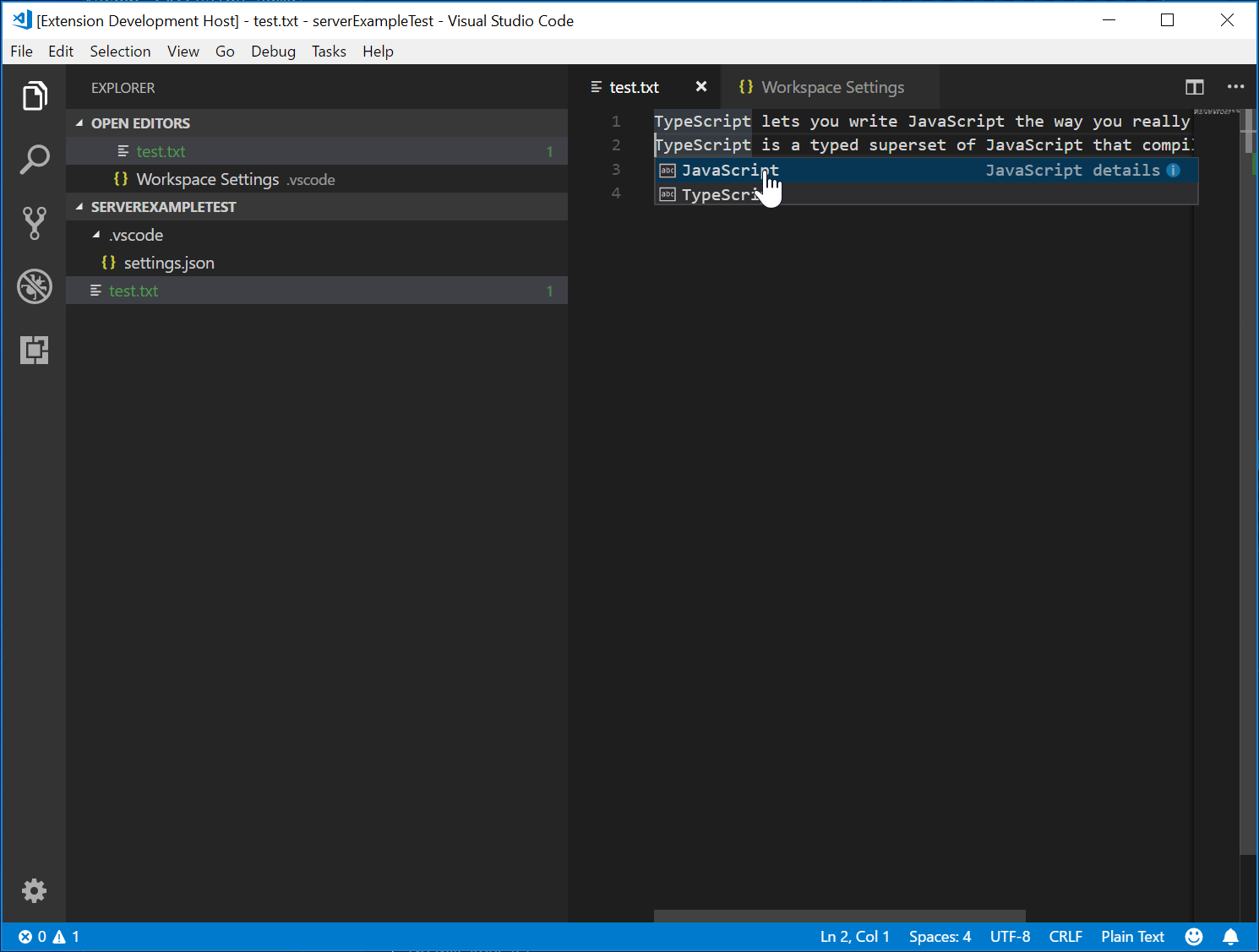
下面的截图显示了在纯文本文件上运行的完成代码:
测试语言服务器
为了创建一个高质量的语言服务器,我们需要构建一个覆盖其功能的良好的测试套件。测试语言服务器的两种常见方法是:
- 单元测试:如果你希望通过模拟所有发送给语言服务器的信息来测试特定功能,这很有用。VS Code的HTML / CSS / JSON语言服务器采用这种方法进行测试。LSP npm模块也使用这种方法。见这里,使用npm协议模块编写的单元测试。
- 端到端测试:这类似于VS Code 扩展测试。这种方法的好处是通过实例化一个带有工作区的 VS Code 实例,打开文件,激活语言客户端/服务器,并运行VS Code 命令来运行测试。如果你有文件、设置或依赖项(例如
节点模块) 这些是难以或不可能模拟的。流行的Python扩展采用这种方法进行测试。
可以在任何你喜欢的测试框架中进行单元测试。在这里,我们描述如何进行语言服务器扩展的端到端测试。
打开.vscode/launch.json,你可以找到一个端到端测试目标:
{
  "name": "Language Server E2E Test",
  "type": "extensionHost",
  "request": "launch",
  "runtimeExecutable": "${execPath}",
  "args": [
    "--extensionDevelopmentPath=${workspaceRoot}",
    "--extensionTestsPath=${workspaceRoot}/client/out/test/index",
    "${workspaceRoot}/client/testFixture"
  ],
  "outFiles": ["${workspaceRoot}/client/out/test/**/*.js"]
}
如果你运行这个调试目标,它将启动一个带有 VS Code 实例。客户端/测试组件作为活动工作区。VS Code 将继续执行所有测试客户端/源/测试作为调试提示,您可以在TypeScript文件中设置断点客户端/源/测试他们会受到打击。
让我们来看一下完成测试.ts文件:
导入 * 作为 vscode 从 'vscode';
导入 * 作为 断言 从 'assert';
导入 { 获取文档uri, 激活 } 从 './helper';

suite('Should do completion', () => {
  const docUri = getDocUri('completion.txt');

  test('Completes JS/TS in txt file', async () => {
    await testCompletion(docUri, new vscode.Position(0, 0), {
      items: [
        { label: 'JavaScript', kind: vscode.CompletionItemKind.Text },
        { label: 'TypeScript', kind: vscode.CompletionItemKind.Text }
      ]
    });
  });
});

async function testCompletion(
  docUri: vscode.Uri,
  position: vscode.Position,
  expectedCompletionList: vscode.CompletionList
) {
  await activate(docUri);

  // Executing the command `vscode.executeCompletionItemProvider` to simulate triggering completion
  const actualCompletionList = (await vscode.commands.executeCommand(
    'vscode.executeCompletionItemProvider',
    docUri,
    position
  )) as vscode.CompletionList;

  assert.ok(actualCompletionList.items.length >= 2);
  expectedCompletionList.items.forEach((expectedItem, i) => {
    const actualItem = actualCompletionList.items[i];
    assert.equal(actualItem.label, expectedItem.label);
    assert.等于(实际项目.种类, 预期项目.种类);
  });
}
在这个测试中,我们:
- 激活扩展。
- 运行命令
vscode执行完成项提供程序带有URI和位置来模拟完成触发。 - 断言返回的完成项与我们预期的完成项一致。
让我们更深入地探讨一下激活文档URI函数。它在客户端/源/测试/助手.ts输入:
导入 * 作为 vscode 来自 'vscode';
导入 * 作为 path 来自 'path';

export let doc: vscode.TextDocument;
export let editor: vscode.TextEditor;
export let documentEol: string;
export let platformEol: string;

/**
 * Activates the vscode.lsp-sample extension
 */
export async function activate(docUri: vscode.Uri) {
  // The extensionId is `publisher.name` from package.json
  const ext = vscode.extensions.getExtension('vscode-samples.lsp-sample')!;
  await ext.activate();
  try {
    doc = await vscode.workspace.openTextDocument(docUri);
    editor = await vscode.window.showTextDocument(doc);
    await sleep(2000); // Wait for server activation
  } catch (e) {
    console.error(e);
  }
}

异步 函数 睡眠(毫秒: 数字) {
  返回 新的 承诺(解决 => 延迟(解决, 毫秒));
}
在激活部分,我们:
- 获取扩展使用
{出版商名称}.{扩展名},如在中定义的package.json输入:. - 打开指定的文档,并在活动的文本编辑器中显示。
- 睡眠2秒,以确保语言服务器已实例化。
完成准备后,我们可以运行VS Code Commands,对应每个语言特性,并断言返回结果。
还有一项测试涵盖了我们刚刚实施的诊断功能。请查看:客户端/源/测试/诊断测试.ts输入:.
高级主题
到目前为止,本指南涵盖了:
- 语言服务器和语言服务器协议的简要概述。
- VS Code 中语言服务器扩展的架构
- 这个lsp-sample扩展,以及如何开发/调试/检查/测试它。
有一些更高级的主题我们没有能够在本指南中涵盖。我们将包括这些资源的链接,以便进一步研究语言服务器开发。
附加语言服务器功能
当前,语言服务器支持以下语言特性以及代码补全:
- 文档亮点:突出显示文本文档中的所有“等于”符号。
- 悬停:为文本文档中选择的符号提供悬停信息。
- 签名帮助:为文本文档中选择的符号提供签名帮助。
- 转到定义:为文本文档中选择的符号提供转到定义的支持。
- 转到类型定义:为文本文档中选择的符号提供转到类型/接口定义的支持。
- 转到实现:为文本文档中选定的符号提供转到实现定义支持。
- 查找引用:查找选定文本文档中符号在整个项目中的所有引用。
- 列出文档符号:列出文本文档中定义的所有符号。
- 列出工作区符号:列出所有项目范围内的符号。
- 代码操作:为给定的文本文档和范围计算要运行的命令(通常是格式化/重构)。
- CodeLens:为给定的文本文档计算CodeLens统计数据。
- 文档格式化:这包括整个文档的格式化、文档范围的格式化和类型上的格式化。
- 重命名:在整个项目中重命名一个符号。
- 文档链接:计算并解析文档中的链接。
- 文档颜色:计算和解析文档中的颜色,以在编辑器中提供颜色选择器。
该程序化语言特性主题描述了上述每个语言特性,并提供了如何通过语言服务器协议或直接使用扩展API在你的扩展中实现它们的指导。
增量文本文档同步
示例使用了由提供的简单文本文档管理器vscode语言服务器模块用于在 VS Code 和语言服务器之间同步文档。
这有两个缺点:
- 大量的数据被传输,因为文本文档的全部内容被反复发送到服务器。
- 如果使用现有的语言库,这些库通常支持增量文档更新,以避免不必要的解析和抽象语法树创建。
因此,该协议支持增量文档同步。
为了利用增量文档同步,服务器需要安装三个通知处理器:
- onDidOpenTextDocument:当在 VS Code 中打开文本文档时调用。
- onDidChangeTextDocument:在 VS Code 中文本文档内容更改时被调用。
- onDidCloseTextDocument:当在 VS Code 中关闭文本文档时被调用。
以下是说明如何在连接上挂钩这些通知处理程序以及如何在初始化时返回正确的功能的代码片段:
connection.onInitialize((params): InitializeResult => {
    ...
    return {
        capabilities: {
            // Enable incremental document sync
            textDocumentSync: TextDocumentSyncKind.Incremental,
            ...
        }
    };
});

connection.onDidOpenTextDocument((params) => {
    // A text document was opened in VS Code.
    // params.uri uniquely identifies the document. For documents stored on disk, this is a file URI.
    // params.text the initial full content of the document.
});

connection.onDidChangeTextDocument((params) => {
    // The content of a text document has change in VS Code.
    // params.uri uniquely identifies the document.
    // params.contentChanges describe the content changes to the document.
});

连接.onDidCloseTextDocument((参数) => {
    // 在 VS Code 中关闭了一个文本文档。
    // params.uri 唯一地标识了该文档。
});

/*
使文本文档管理器监听连接
以处理打开、更改和关闭文本文档事件。

注释掉这一行以允许 `connection.onDidOpenTextDocument`,
`connection.onDidChangeTextDocument`,和 `connection.onDidCloseTextDocument` 处理这些事件
*/
// documents.listen(connection);
直接使用 VS Code API 实现语言功能
虽然语言服务器有许多好处,但它们并不是扩展 VS Code 编辑功能的唯一选择。在您希望为某种类型的文档添加一些简单的语言功能时,请考虑使用vscode.languages.register[语言功能]提供者作为选项。
这里有一个完成样本使用vscode.languages.registerCompletionItemProvider添加一些片段作为纯文本文件的补全。
更多关于 VS Code API 使用的示例可以找到 https://github.com/microsoft/vscode-extension-samples。
容错语言服务器解析器
大多数时候,编辑器中的代码是不完整的并且在语法上是不正确的,但开发人员仍然期望自动完成和其他语言特性能够正常工作。因此,语言服务器需要一个容错解析器:解析器从部分不完整的代码中生成有意义的AST,语言服务器根据AST提供语言特性。
当我们改进 VS Code 中的 PHP 支持时,我们意识到官方的 PHP 解析器不具有容错能力,无法直接在语言服务器中重用。因此,我们开发了Microsoft/tolerant-php-parser并留下了详细的笔记,可能有助于需要实现容错解析器的语言服务器作者。
常见问题
当我尝试连接到服务器时,我得到“无法连接到运行时进程(5000 毫秒后超时)”?
如果你在尝试附加调试器时服务器没有运行,你将看到这个超时错误。客户端启动语言服务器,因此请确保你已经启动客户端以使服务器运行。如果你的客户端断点干扰了启动服务器,你可能还需要禁用客户端断点。
我已经阅读了这本指南和LSP规范,但我仍然有一些未解决的问题。我可以在哪里获得帮助?
请在 https://github.com/microsoft/language-server-protocol 提出一个 issue。